In the past, I have been involved in various projects across different industries ranging from legal lifestyle, to gifting to charity. This post focuses on my freelance design work for the legal industry, picking out a handful of projects to show and discuss – my Freelance design for the legal industry.
Most of the projects were created at the time when ‘static’ websites were the norm and responsive design was but a twinkle in tech industries eye.
Frame UI for Legal website
Overview | Freelancing for Law & More
Law & More – or what I used to call LAM, was a legal lifestyle platform for all that was to do with the legal industry, be it: jobs, advice and entertainment. Working for Law & More gave me the chance to show how I could approach a brief, whether it was a UI project or an animation.
I was involved in
creating micro-sites, animations, UI’s and then building the static
HTML websites with the aim to drive traffic to the Law & More
platform.
If you would like any advice on your website feel free to send an enquiry and I will get back to you as soon as possible. Questions welcome!
Below are the samples
of my work.
Header Animation – Legal Industry
As part of the
freelance project to create engaging visuals for my client – I
created a set of animated headers that were blended into the UI
offering a seamless, functional and a fun web experience.
When these headers were
created it was at the time of the ‘static’ website era – when the
humble desktop reigned supreme! Smartphones had come to the market
but weren’t as mainstream as they are today.
( Many of us had flip phones – or used the classic dial pads on a Nokia, yes – I used to be able to touch text on my phone without looking.)
As this website
followed the conventions of a static website, I only needed to
concern myself with a single standardised format for browsers and
desktops.
It would be difficult
to replicate this website today, due to it being technically
challenging to accomplish the same results on a responsive website.
Although, whilst writing this paragraph, I have already thought of a
couple of paths that may achieve a similar visual result across all
browsers and devices – but that is purely hypothetical.
I found this design
strangely refreshing when most websites now are fluid and in essence
follow the exact same format of a full-width image that works both
well on a smartphone and desktop browsers.
UI Design
With the static website
UI’s, I had fun creating something unique that would entice users to
engage with the brand. The UI needed to playful and push the users to
the main website where they could either read articles, browse jobs
or even bag a luxury holiday!
With the brief, I
wanted to push boundaries as far as possible.
…
Thanks guys
Freelance designer for the legal industry
MPU’s
If you would like to see other UI projects you can see this collection of UI’s here.
MPU Design
In this instance – a Multi-Purpose Unit. Is space you could use to either display a banner, upload an animation or create an interactive piece navigation. In this case, I created an interactive carousel in Adobe Animate.
If this was to be made
again now, it would be published as HTML5 or probably wouldn’t exist
at all as this project was very much something of it’s time and was
heavily dependant on flash.
Thank you for reading this post. If you are in need of any freelance services and you are based in the legal industry feel free to get in touch for a quote.
“Proving himself to be an excellent problem solver delivering creative and innovative solutions to our web ideas which we have not always been able to provide a detailed spec for.”
– D Goodridge, Law & More
All visuals, designs, and ideas are copyright Law & More. Please do not share or use this content without prior permission.
To answer the question of what can you create in Adobe Animate there is a large list of applications and uses for this program which I have included in this post.
With Adobe Animate you can create; cartoons, animations for web, games, apps, interactive media and so much more with a bit of thought and creativity.
I have used Adobe Animate to create Indie games, animations, introductions and small pieces of motion graphics that have been used on websites for numerous purposes.
2 significant projects I have created using Adobe Animate are: an interactive Museum and an e-learning game, which I shall mention further on in a bit more detail.
Adobe Animate is a good program and shouldn’t be dismissed too quickly.
Adobe Animate is still a viable program in certain situations and can offer great results – it comes down to what you want to achieve and how you would like to get there.
A plus to using Adobe
Animate is the way you can use keyframes and a timeline similar to
traditional 2D animation skills.
It also comes as part
of the Creative Suite (CC) if you are already a subscriber to the
whole package.
I have attached my showreel demonstrating what you can do. Many of these projects were of a commercial nature, and if you still wish to read the rest of this post for more information then please do!
What I created in Adobe Animate
Animation Showreel
Psst, are you looking at making a game?
If you are here because you are intending on making a game or interactive story, I would advise reading this post that covers some of the principles of creating a game in Adobe animate.
This may also prevent – “I wish I knew that earlier” syndrome when you come to create your game.
List of examples of what you can create in Adobe Animate
These are some of the projects I have been involved with creating for both personal and professional purposes.
These are all ‘real’ projects and actual examples of what you can make, and what has been made in Adobe Animate by myself or as part of a team. Examples of what you can create in Adobe Animate.
Product Simulation – Browser and Desktop App
This app was part of a larger project that I was involved in from the beginning.
In order to demonstrate the product without the physical product needing to be sent directly to the buyer, the app demonstrates how the product works through the computer screen.
This was a virtual demonstration for a product called Idesign.
I was involved in coming up with the concept, planning, designing and development of the application and it was all put together in Adobe Animate, what was then known as Flash then.
Much of the trimming work and cutting out of the PNG’s was performed by a colleague – also the chief bug tester.
Created in Adobe Animate (Flash)
Using Adobe Animate to create an application
With the Idesign
project, it wasn’t just a browser application that was created.
A desktop application
was created too so that both buyers and “end users” could
download the software and play it from their own computers.
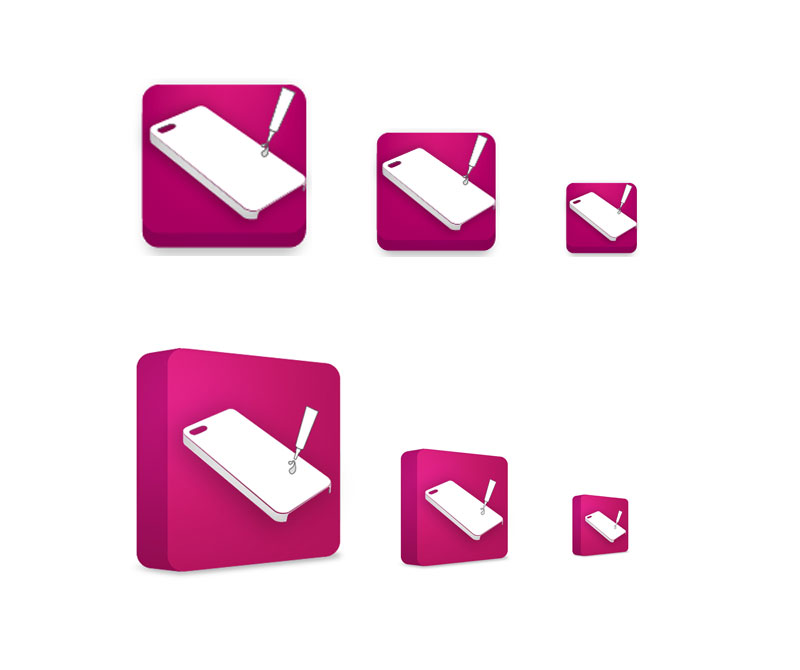
These are the icons
that were created to sit on the taskbar or desktop.
.icons
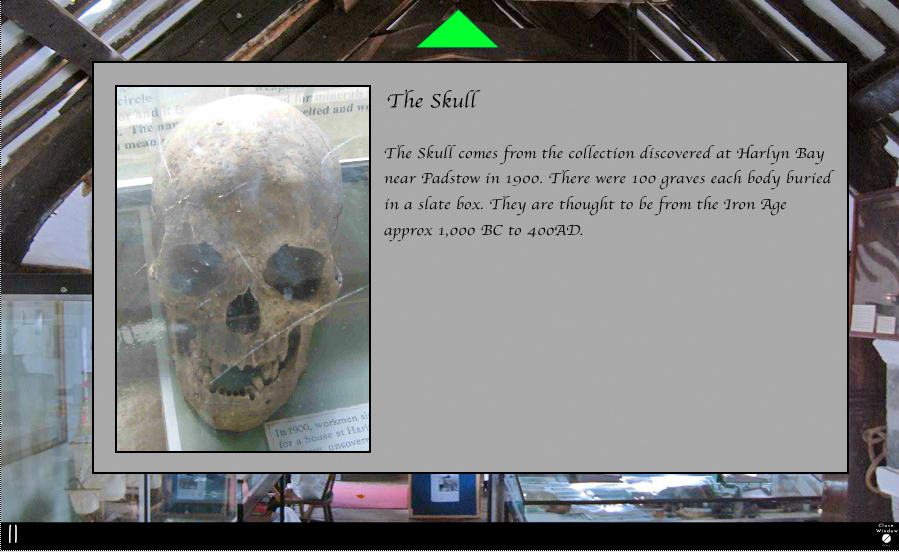
I used Adobe Animate to create an interactive museum
What else can you do with Adobe Animate? You can create an interactive museum, it’s great for e-learning projects.
This was a detailed
project that involved using Adobe Animate to create an interactive
museum for a local charity.
The interactive museum, after it was treated and prepared was developed in Adobe Animate.
More can be read on how
I used Adobe Animate and the rest of the creative suite to bring this
project to life. Creating an interactive museum.
But in essence, it was
Adobe Animate that breathed life into the static imagery and made it
all interactive and fun!
Aside from the topic
itself.
Create a point and click game (Graphic Adventure)
This is an example of a game that was designed and developed by me, in AA.
After drawing the level
with a pencil and then proceeded to trim all the artwork in Photoshop
and then bring it all to life in Adobe Animate I playtested this
small graphic adventure with friends and family.
This was a ‘small’ self-initiated project in which I challenged myself to create a one-level game – or to be specific – a graphic adventure in under a month. That included the artwork and the programming on my own.
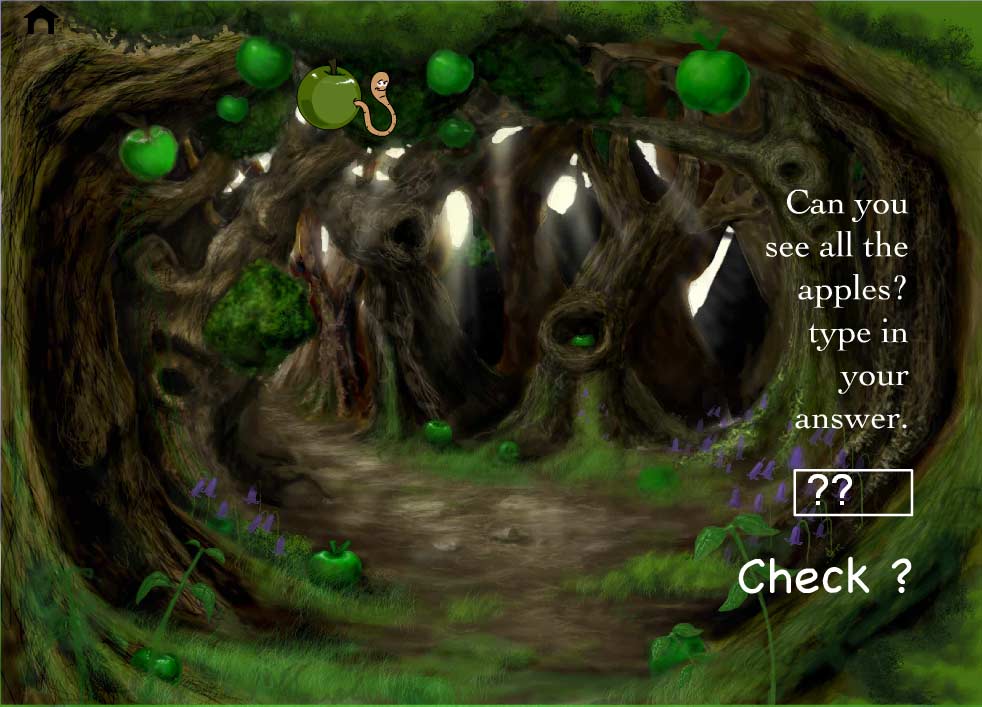
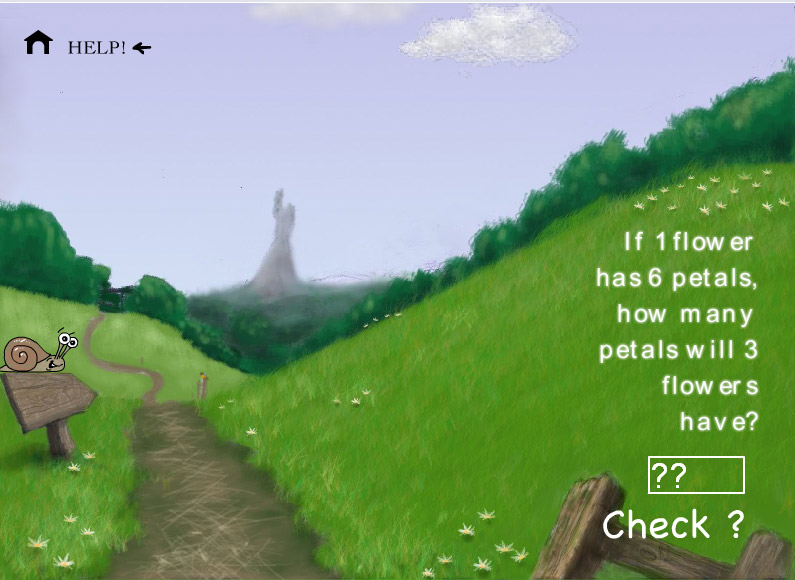
This E-learning game
was created to make learning fun for young children! Whist traveling
through a set of levels, the player would have to answer questions to
complete the game.
You can read more about how I created an e-learning game inanimate and learn from my mistakes.
You can make a viral game
This game was created
in Adobe Animate – as is the theme with everything listed in this
post.
This game combined a mixture of using animation, artwork, and coding in Action Script 2 to create a twitchy game where the player had to jump over spears.
The purpose of this
flash game was to promote a comic and music score for a client.
(I had no part in the
artwork or the concept of this game – only its construction and its
build)
Using Adobe Animate for ‘Animation’
You can use Adobe Animate for – you got it, creating animations! Adobe Animate is a good tool for creating not only games but frame by frame animations too. You can use tweens and keyframes to create motion graphics.
What you decide to do
with these animations and how you plan to distribute them is down to
you.
You can place these animations on Youtube or publish then to HTML5 – I would strongly advise against using Animate and publishing to.SWF.
The SWF format is
already disappearing and will only continue to diminish in the
future.
I have used Adobe
Animate numerous times in the past to animate characters, typography,
parts of games and many other interactive and moving elements that
sit somewhere between all that is listed above.
animations created in Adobe Animate.
Animated 2D painting created in Adobe Animate
This painting, the one shown in the image below was sent to me as is.
The purpose of
animating this interesting painting of the Yorkshire reservoir was to
capture the attention and drive traffic!
A link to the website can be found at the bottom of this post.
Many of the games and
applications I have used in the past have required me to use Action
Script to make them work. Action Script 3, along with 2 has been
around since Adobe Animate was called Flash.
You can create interactive ‘wound damage’ UI’s
This is an example
interactive project showing what you can make with the time and bit
of Action Script 3.
This is an experimental
piece of work showing a wound gauge that can be applied to a
hypothetical game UI.
About the interactive
timeline
The code and ‘states’
are relatively simple to create in principle for this project.
I created create 4 keyframes on the root timeline.
Added 4 Action Script frames above the keyframes
wrote ‘Stop();’ in the ActionScript layer which then enabled application to jump to the next frame when triggered eg – takes damage.
Or, a simple button
click.
In this project, I have also added a ‘Healed’ state at the very end so theoretically if you wanted the player to heal when trigged, it would be the case of jumping the animation to that frame on the timeline.
This would make a great addition to a game UI or interactive adventure.
I have added my last
couple of projects towards the bottom.
You can use Adobe Animate for making video’s
Yes, not only can you just create Animations and make little HTML5 videos or enclosed apps that can be downloaded as part of an Adobe Air Package – but you can also create stand-alone videos and intros.
I have used Adobe Animate to create animated headers on websites, animated videos and intros and also starter clips that have been uploaded to Youtube.
Minor detour alert …
Many years ago, whilst studying, I used Adobe Animate a lot – it was part of my major and it was around this time I was shown a brilliant animation on “Bitey castle” if you have time I would advise paying the website a visit.
I have attached a link at the end of this post so you can look.
Back from Flash nostalgia…
Here are some of the live animations created in Adobe Animate.
Animated Intro – The Gadget Factory
The purposes of this
animated intro were to promote a brand theme – the Gadget Factory
as part of a marketing push to promote a new line of cool, fun and
exciting products.
This 20 / 30-second
clip was created using a variety of motion tweens, keyframes, and
experiments with visual effects to get the desired results.
The still keyframes
below have been pictured to show the animation in action.
Animation
Guess Poo
I was in two minds as to whether to add this project but I felt as it was so infantile, fun and had a lot of TLC with the design I felt that it deserved some love.
Guess Poo…
For this project, I created an animated indent for a video clip that was featured at the start of the Kickstarter on the Crowdfunding page.
It was crass.
Silly,
Fun.
And it was created in
Adobe Animate.
For the Guess Poo clip,
I animated a character falling from the heaven’s and plopping down
into the dark waters below.
It was arguably
(although fun) too much TLC that the game deserved but hopefully, the
animated clip that was added to the start of the video turned a few
heads.
What can you create in Adobe Animate | list of ideas
Here is a summary / quick list of what you can create in Adobe Animate.
Create a frame by frame animations
Games
Graphic Adventures
Motion graphics for websites
Stand-alone games for browser and desktop
Slideshows
Interactive videos
Video indents and short clips
Rich media, and interactive elements
Elearning experiences
It is not limited to
that list. There are many other creative ways in which you can use
Adobe Animate to create something entertaining or useful.
I feel that I should
mention.
For myself, in the future, I intend to use more programs such as After Effects and Unity for my commercial projects. But I shall always keep the loyal tool of Animate in my belt!
What can you create in Adobe Animate | Summary
Thank you for reading
my post and looking at work samples. If you felt that this post was
useful, feel free to share on social media or on your blog.
I have written a list of useful posts that are related to games created using Adobe Animate
So this is the first post on the blog that is offering a free give away, and there is no catch apart from acknowledging where you found the artwork and perhaps sending a link back to this page.
This post | Free Stock Vector Skull | is what it says on the tin. A selection of free skulls that you can use in you is work be it commercial or not. There is no catch!
It is a simple case of copy and paste the jpgs – and they are all yours!
Free Stock Of Skull – Created in Adobe illustrator
Free Skull Stock Graphic
This skull has been created in Adobe Illustrator. This is in preparation for some Artwork that will be available to purchase soon on websites in which you can use it for your project, game, business or anything that is relevant to your purpose.
This stock image is completely free – use as you wish but please refer back to this page saying where you got hold of the artwork.
Side view of screaming skull with mouth open – SCREAMING!
Skull on Purple Grey
These are Free to USE!
Skull on black
FREE Skull Graphic – PNG – Isolated
Skull PNG
Free Stock Graphics – Vector Skull Profile – Free
There is very little to say, apart from ‘thanking’ you for either looking at or reading through this post. If the Free Skull Stock Graphic comes in handy for what you need then great! I am happy in the knowledge that this is serving some purpose out there on the world wide web!
Watch this space to see if there are any other handy projects, tips or FREE stuff. You never know if you come back and look.
Wondering what programs can you use to create your own games for free?
These 5 game engines you can use for Free are more than capable of creating a polished game whether you are a hobbyist or a small studio.
Below is a list of
items (most tried and tested) which you can use to create your game
whether it is a personal project or something you want to monetise at
a later date.
The 5 Game Engines
What programs can you use to create your own games for free? (in the beginning)
Adobe Animate
Adobe Animate is part of the Creative Cloud package. Although this application is only free as part of the demo version you can still try and test out your game.
If you like the program
you can purchase the product at a lower cost if you are a student or
a teacher.
Adobe Animate is great for making 2D games and animations which can either be played from your browser or downloaded as a stand-alone application (Adobe Air)
It should be noted, that if you do decide to use Adobe Animate you should avoid publishing your game as a Flash object (.SWF) as this format is becoming more and more defunct with many browsers no longer running it by default. Best avoid this SWF format.
Those are the facts
about Adobe Animate. I will now give some opinions on the program.
Yes, Adobe Animate is a free game maker as Demo and you can create some great 2D games and animations. If you want to get serious with the application, you will have to buy it.
Adobe Animate is great for making 2D games and animations which can either be played from your browser or downloaded as a stand-alone application (Adobe Air)
But, the program
doesn’t get as much love as it used to. In the heyday of Adobe
Animate (which was known as flash then), there were 1000’s of games
being created and published to the internet using this software.
I majored in part of studying using the application to create an E-learning and STEM game. I also used it on various commissions to promote or create games.
As the years have gone
by newer and *completely free engines have come to the table where
anyone can play and test their games straight after downloading their
game. And you don’t even have to know how to code with some of them.
Adobe Animate is a
great program and the Demo is free but I would consider some of the
awesome modern and powerful options out there before investing your
time in this software.
I will always have
respect for Animate but I have started to find my love with newer
game engines that offer great solutions.
Stencyl
Stencyl is also a free game engine to download.
And, if you don’t like
coding or writing – you will probably like this application more to
create a game.
Code block looks like this | 5 game engines you can use for free
Stencyl behaves a lot like building blocks when you assemble code and behaviours. The one major frustration I found with using this application to create a game is that it does seem to have it’s technical limitations once you try to get off the starter steps.
Some of the simpler challenges such as creating a cursor in Stencyl (as shown) can be done but I struggled to get it to work with any degree of sophistication. That is not to say that you can’t or won’t – there are developers out there that have created games and monetised what they have made by using Stencyl.
I think one of my
favourite things about Stencyl (aside from being free to download) is
that it’s great learning how to make games away without hard coding
it together.
If coding scares you, then Stencyl could be a way to go.
Unity Software
I could write a whole lengthy article as to why Unity is a great and free gaming engine (I have an article already for that actually) and why you should consider it on its merits alone.
But, this article needs to give a level playing field as to which game engines are great to use and are free.
Unity is a very able program which can create 3D games, 2D, 2.5 D games, platformers – you name it, quite a lot in other words.
The downside is, you will struggle if you cannot code or don’t have a mindset for coding. To get truly great results, you will need to code Unity in C Sharp to make something great.
The one big thing that bridges that knowledge gap (if coding isn’t your thing), is the asset store. It should be noted though that the asset store isn’t a silver bullet.
You can purchase many ‘assets’ and templates to do a lot of the heavy lifting for your game which makes Unity very appealing. There are even some free assets in store which you can use in your can ranging from 3D models to a range of furniture.
Unity in Action | 5 game engines you can use for free
If at some stage you start to earn a substantial amount from your game, then you will need to pay the professional fees for the license to use Unity.
Winter Mute Engine is a
fair and free open-source engine that makes full 2D or 2.5 adventure
games. It is a good engine if you want to create some classic
adventures and point and click game as it comes with many of the
tools needed to have a ready to deploy game
You can see examples of what can be created in Wintermute by following this link to the Dead Code website.
In the past, Winter
mute had a very active forum with its active users willing to help
you out as when needed.
In my opinion, the main limitation to using the Winter Mute engine is that is predominately geared towards Windows PCs and general activity around it – isn’t as powerful as some of the others out there.
It should also be noted that if you intend to use Winter Mute you will need to code the game to work.
You can find out
whether Winter mute is the Engine for you. As you can see by some of
the examples you can see at can produce some excellent results with
the know-how and talent.
Unreal Engine
Unreal Engine, like the
other game engines mentioned in this post, is also free to download
and can create both 2D and 3D games that look like AAA standards.
The great thing with
Unreal Engine – setting aside that it is also free to download the
program is that it can create some spectacular 3D visuals which are
on par with epic games that see released on the Play Station or Xbox.
If you are intending on
creating games with some punchy looking graphics and excellent
lighting effects then Unreal could be the way forward for you.
On a personal level, I can only vouch for how good Unreal is visually and the quality of the games you can produce using this engine. You see an example of what can be created in Unreal here.
I have personally never
developed anything in Unreal – I have just stood on the sideline
and admire what can be created.
5 game engines you can use for free | Summary
I hope that is this
post has offered some insight into what game engines and programs you
can use to start creating your game for free today.
Some of the game
engines are better at certain actions than others and I hope that
this post has cleared up some of the patches of what you can and
can’t do – mostly based on personal experience with using the
engines.
Thank you for reading this post about what 5 game engines you can use for free. If you felt that this post was helpful and other game devs would benefit from reading it then do share.
Creating an interactive story, or game can be tricky! This post has been written to show how to make an interactive story game in Flash (Adobe Animate) – described using simple (less non-tectie) methods.
Make an interactive story or, in my case – an interactive museum!
How I created an interactive museum
If you are completely new to creating games or making interactive gaming experiences, then I would advise looking posts such as this: creating a STEM game that was also made in flash. This is from another project I worked on in the past.
Flash, if you are unaware is the old name for Adobe Animate. All methodologies and approaches in the post are still relevant today and I am sure will help you in your journey creating a cool story type game!
The short answer: How to make an interactive story game in Flash (Adobe Animate)
Artwork | You will need a graphics creation program such as Adobe Photoshop or Illustrator, I have written a detailed post on the graphics programs which you can read here – creating digital artwork.
Build it | In order to build, or develop your game, you will need to use an engine or a platform such as Unity or Adobe Animate (flash) which is what this post and project as all about!
Publish it | Is that all? Sort of, if you want to make a compelling story game you will need to put a lot of time into making some striking visuals and compelling narrative to carry the player through to the end.
If you are just embarking on making games or interactive experiences, I would also consider using a powerful game creation program such as Unity. Unity is powerful, you can create a range of games types with many off the shelf solutions.
Although, Unity does come with a steep learning curve, so be warned!
The interactive museum in this post was built for a client using Adobe Animate and Photoshop. The steps below outline some of the methods and approaches to creating an interactive project.
Using Adobe Animate to build a game (or museum)
My core training was based around using Adobe Animate to make 2D games, animations, and rich media experiences – it was my major!
Now, I don’t wish to go into the opinions of why or why not to use Animate in this day and age. I will assume for whichever purpose, you either need or want to use the application to build an awesome experience and that is okay! None should judge.
You should know this when you publish with Adobe Animate.
When you publish a game in Animate, it can be created in the following formats and platforms:
.SWF (flash player browser) ( I would avoid this format now due to lack of technical support and accessibility issues – read more reasons on avoiding flash player on this blog ) .
HTML5 – can run straight from your browser.
Projector files for both Mac and PC – similar to making regular program or .exe file.
As an app for Android and Apple.
As an enclosed Adobe Air app that can be downloaded straight to the computer.
FL5 – this is a legacy shot. There are more options today!
My interactive project as shown further down in this article was made by publishing as an Adobe Air application and as a browser-based *SWF format. Old yes, irrelevant? Not at all.
The .SWF format or
flash player for browsers to be specific is an old format and I would
now avoid using it.
If you are undecided which is best if you are intending on making a game solely for a browser – use HTML5, WEB GL, or if you download your game, use Adobe Air.
Publishing to Adobe Air applications isn’t the only way to create an enclosed stand-alone program or application. You can use .exe or a mac projector also.
Flash Publishing Plus
You can also download
applications that extend the publishing capabilities of flash.
For example, ZINC will make a neat package for your application although it has now taken its servers offline you can still use the legacy format. MDM Zinc
Edit / note : many of the formats Animate can now output is very much capable enough of fulfilling the duties of these programs listed here. eg. Zinc.
You can also create a DMG on an iMac and pack your items inside it for professional distribution. You can also have a lot of creative license for logos and interface artwork.
On a personal note, I would be inclined to stick with *ADOBE AIR ( no longer owned by Adobe ). Adobe air comes with more than enough capabilities for packaging distribution for your game – even to implementing your or desktop icons.
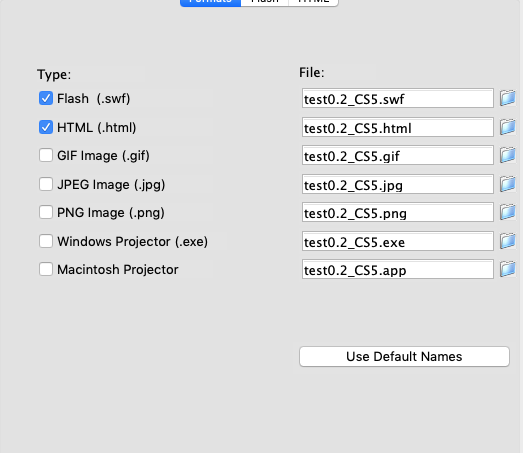
Using Adobe Flash (animate) to publish your interactive story game to a browser
The image above is from a slightly older version of Adobe Flash (now Animate) but it shows that it is mostly a case of ticking the publishing formats you wish to use.
If you are skim reading this, I would advise paying close attention to the next paragraph, especially if you want to put your game on the web.
Using The SWF format and flash player for your game?
The .SWF format is no longer as widely supported as it used to be, especially if you publish it to the web as a flash player. I would advise against using this format.
You may notice on certain websites a notification box appears on the body of a page asking for you to “run flash player”? That is what now happens if you publish to flash player / SWF. As shown below. Or, it should be a case that now Flash Player has gone altogether.
Example of the flash player being blocked by default in Firefox
The image here
illustrates the flash player being put on hold until it is enabled by
the user.
By publishing to the
flash player with your .SWF object – Instead of your movie, you will
get a hollow grey box and notification.
Using the .SWF object
makes for terrible user experience in 2020 and has done for some time
now. Many people are more likely to hit the back button or just
ignore the interactive content as it needs to be enabled or ‘allowed’
by the user.
And how heartbreaking is that feeling after spending all of your time creating a game or animation? Flash player is now stopped by default by many browsers.
With this in mind, I would say it is best to avoid a SWF / flash player for the browser. And, don’t forget how this will also behave on a Smartphone now too. ( This website, should I publish to Flash Player)
Should you both with flash player in 2020 for browsers? I won’t.
Use an alternative format if you want to display your content or show an animation – such as HTML5 if it is a game. This is all opinion based on what I have seen, learned and what is now professionally advised. You may ignore all this if you wish.
You will need to know ActionScript 3.0 to make your game work in Adobe Animate (sorry!)
Did I mention code? I’m afraid so. If you are not a coder you may hit some hurdles here or need to do some homework – or hire and Action Script Developer! ActionScript is the lifeblood for Flash games.
There are not many ways around not using ActionScript.
Adobe Flash, which was renamed to Adobe Animate a few years back, uses a coding language called Action Script 3 (AS3) to add interaction to games and applications.
Without being able to code or at least being able to bash some ActionScript together, you will not be able to create a somewhat sophisticated interactive project in Adobe Animate, unless you are making an HTML5 game.
Making a game or an interactive experience will require getting into some script, even just to make a level change, a speech bubble appears or simple player interaction.
Interaction in Adobe will require you to program. It is not the hardest language but if coding really isn’t your thing… perhaps consider an alternative means or more visual-based engine?
Or why not just jump in with both feet and find out if you can code?
You can start to learn
Action Script 3 here or by purchasing a cookbook and getting your
teeth sunk into it.
If you want to write Action Script 3 this is a good start
You can find these
types of books on eBay at a relatively low cost.
It should be noted that
if you do decide to buy one of the ActionScript books from eBay I may
get a small commission at no additional cost to you.
Failing this, if you do
not wish to read how to use Action Script you may find tutorials to
watch instead or ask for help on forums.
How to make an interactive story game in Adobe Animate – The Nitty Gritty
Now you have an idea of
what may be involved with creating your own game application or
immersive experience in Adobe Animate. You may be ready to delve a
little deeper … or run for the hills
To summarise what has
been written so far you will need to do the following for your game
:
– Rough / plan out your game or story – although be prepared to edit as you create the actual game
– Write in Action Script for interaction so it reacts to the player, eg: button clicks, movement, transitions to levels for your story.
– Publish it, and get your game out there.
That is a simplified
way of summing up what has been covered so far. In essence that is a
rough guide of what you need to do in layperson.
– Plan
– Roughout artwork
– Build
– Test / Publish
Whether you are intending on making a 2D gaming application, a story or an interactive museum as shown in this post, come at your project prepared.
Morale boost: As a warning, those milestones can seem a long way from time to time. One foot in front of the other! You will get across those desert coding plains.
Coding or not coding your story game
If coding really isn’t
your thing and you are more or a designer than a developer – you
should consider using an application such as Stencyl to take some
smaller steps into game development.
Stencyl works like lego
building blocks in which you can click together the functions and
behaviours of your game. The image below is an example.
Example of coding game in Stencyl
You can also read an example tutorial here on how to make a Cursor in Stencyl. Which was written by me when I used Stencyl a little bit more often.
Unity software is another option but it is a more advanced option if you are new to creating games and applications.
The next section of the post covers how I created an interactive museum for the client.
The Client Brief | Promote the museum (interactive experience)
After setting up a
meeting and discussing the budget and the requirements, I set about
what could be done to create an experience that would promote a local
museum in Cornwall.
The website part of the
project was built to inform and educate potential visitors. The
interactive part of the website was built to ‘excite’ visitors and
offer an e-learning experience.
The e-Learning part of
the website is what I have focused on in the article – “How to make
an interactive story game in flash”, or in this instance.
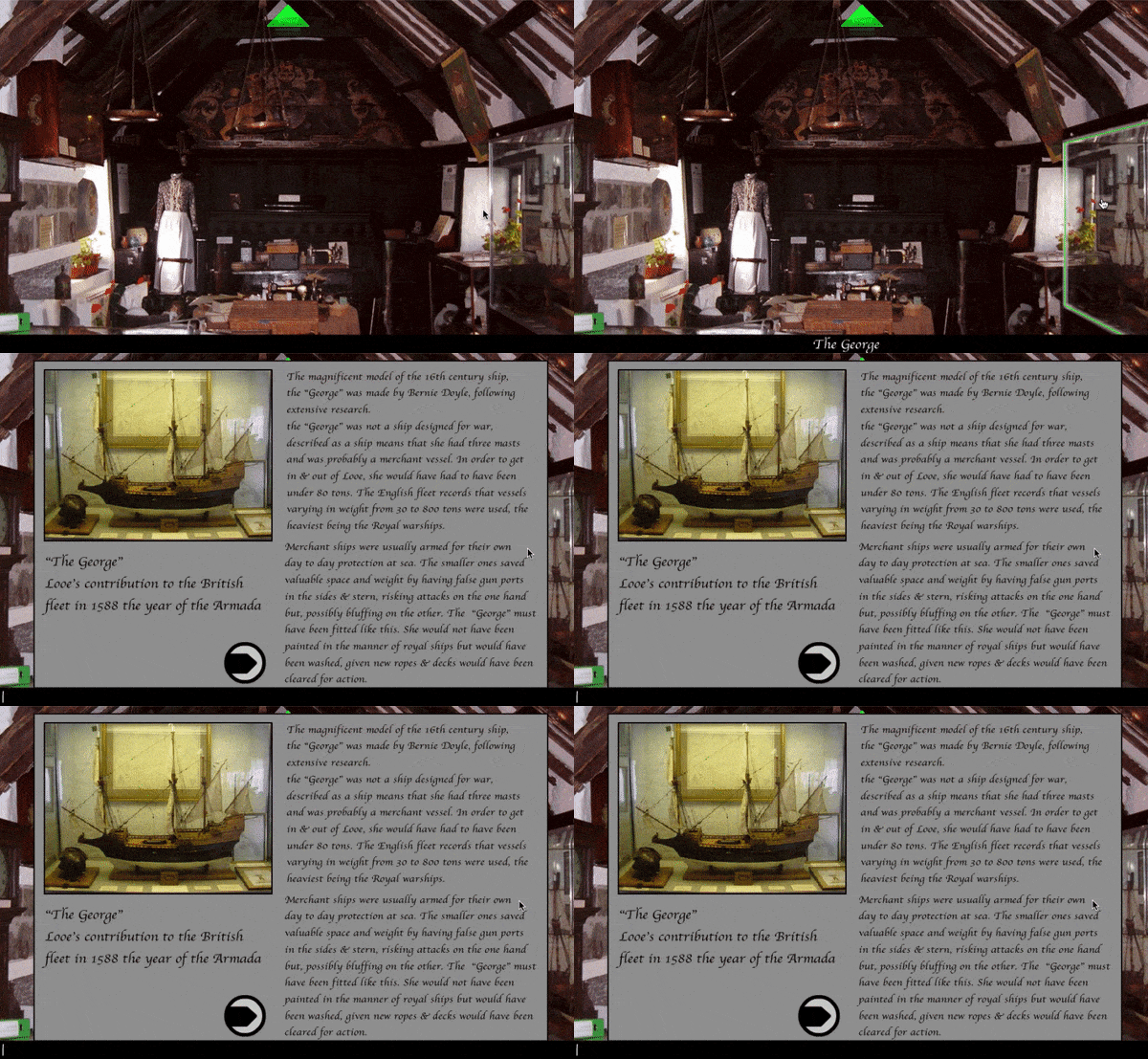
Caption from the interactive Museum
How to make an interactive museum experience that can be played from a web browser.
How I created an Interactive Museum in Flash | The Steps
Being a fan of all things to do with history and using my new found technical knowledge as a graduate, I jumped feet first into this project. This project allowed me to use my imagination and critical thinking to offer an experience that would entertain, entice and educate!
I was thrilled!
It was a challenge, but
a great one to embark on so early on in my professional career.
Designing the interactive museum | pre-development stages
Before opening up flash
or writing a line of code, I sketched down my ideas of what I was
intending to do and proposed it to the client.
After getting approval for the initial design, I started to conjure ways to make this project come to life both visually and technically.
The interactive museum,
which would work similar to a point and click style game or a graphic
adventure would be launched at the same time as the website, which I
also created.
The interactive museum was 2 stages – levels – where you could stand at two opposite ends of a large courtroom. This was the main stage of the hall, both in real life and in an interactive experience.
In early concepts, I
toyed with the idea of creating other rooms but with time constraints
and budget limitations, the 2 levels were more than enough and
difficult enough in all honesty at an early stage in my career.
Interactive Museum in Action!
It is worth noting here if you are also thinking of designing and developing an app or game, add some wiggle room on the timeline.
You don’t want to be
crushed by the deadline, worse still if you get stuck!
Under a supervised out of season and out of hours visit to the museum, I collected together as much knowledge as I could about my topic and environment. I wanted to create an authentic piece of work that would immerse the players.
I took pictures of the
environment which would later become the interactive parts of my
flash project. With the interaction in mind, I took plenty of
interesting close-ups of Cannonballs, skulls, puppets, etc which
would later be cut out and used.
Taking Photos of the Environment
The purpose of these PNGs allows for a transparent background on the objects. When the player ‘hovered’ over the PNG’s with their cursor in the interactive museum, a green outline would appear around the objects to show that it was ‘live’.
This small visual
representation is a good way of showing to the player that the item
was selectable or interactive in some way. Player or user experience
was paramount to the project as it should always be when creating an
experience.
After all of the
content was collected together, edited and prepared it was imported
into the project library in Flash and coded to life!
Yes, almost like a mad
scientist.
Interactive Museum | The building & development stages
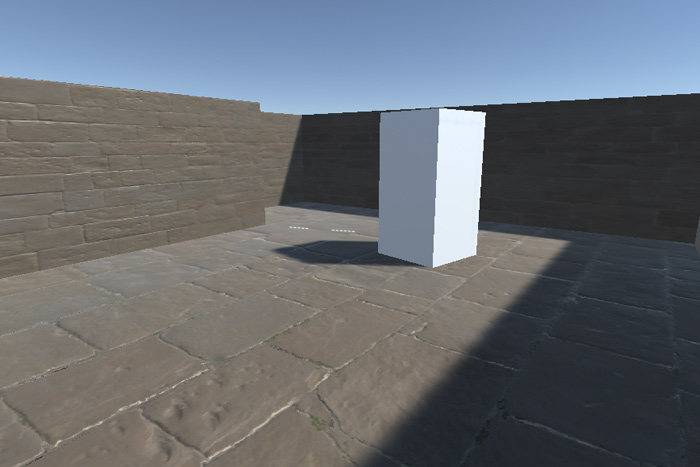
Heads up, consider ‘white boxing’ your game
White boxing? What am I talking about!
By this point, I had
taken my photos and created the bits and pieces as I needed to –
based on my artistic and creative vision.
All the artwork was
finished cut out etc.
As a more modern
method, I would actually advise against making your app this way.
Don’t worry about all
the nice polished artwork first. Focus on the function of the game.
Why?
It’s not an art project
for starters even though that is how I treated it. It’s a learning
experience for “others” to use. It’s for the client to promote
the museum. Not for me to show my skills, that comes second to the
brief.
Also, if you are new to
a program, and you have no outside help, you can throw away a lot of
time focussing on aesthetics that you may not be able to use due to
technical issues and programming hurdles which you cannot overcome.
And guess what happened to those piece’s artwork or assets because of that technical issue?
Or things I couldn’t
overcome – despite the fact I had created the final artwork?
They were canned.
I didn’t get to use it. All that time photographing, trimming, prepping, etc and I couldn’t use them because whilst I was overconfident I could code it into existence – I did meet with time and technical hurdles.
Save time!
I would advise using a method called “white boxing” and this carries across many gaming or interaction projects.
Okay, what is “White boxing!?”
White boxing is a stage in which you are testing and designing how your game or interactive museum may work.
It’s a case of
designing the function before the form and seeing what constitutes as
an actual viable gaming experience.
In other words it a bit like mocking your game up first, or loosely sketching out what goes where and seeing how it works and behaves.
If you are curious and
just want to find out a bit more on where I learned the term “White
Boxing” read the book ‘Unity in Action’ – good book in my
opinion!
You can find out a bit more about it here on eBay. It should be noted that if you do decide to purchase the book through eBay, I may get a commission at no additional cost to you.
The code for the museum
In order to make this interactive museum work, I developed it in a language called ActionScript 2. Action script 2 is now a very defunct language and I would advise against learning that version of Actionscript now.
Unless you otherwise enjoy reading obsolete languages or need to edit the code in a very old project! And if you are editing the code in an old project it in AS2 – it needs to pulled out of the dark ages ( I can talk)
For which ever reason, stick with AS3 (Action Script 3) by default when working in Animate
And, for the sake of keeping my shared knowledge more relevant, I will share with you a piece of Action Script 3.0 instead which was the closest match to my AS2 script.
Now, if you are completely new to using Adobe Animate, I would advise downloading a demo from Creative Cloud and getting stuck in from there. The Demo is free!
Note: Remember that is a general overview of how I created an interactive museum. To go into greater depth I would advise looking for step by step tutorials on using Action Script 3. You would need a lot more than this post to discuss how all aspects of the code makes the museum work.
After I imported my artwork to the library it was essentially broken down into core elements – the background and the interactive elements – the clickable bits!
In order to make my
content interactive, I needed to make things happen when they were
pressed. A Scene change, a speech bubble or all trigger by Action
Script 3.0
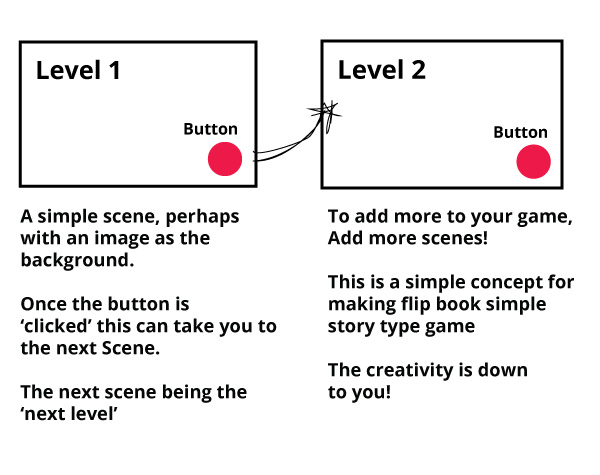
For example, this
snippet of code is what makes a button take a player to the next
scene when it is clicked.
How to go to a next scene in Action Script 3.0
After I imported my artwork to the library it was essentially broken down into core elements – the background and the interactive elements – the clickable bits!
when this button is clicked, go to the next scene, the next scene would represent the next level.
For your own knowledge,
and for my personal reference – I will call this a simple click and
go to the next scene.
And it just that, when the “arrowBTN” was pressed in the scene, it would take the player to the next stage or level – or Scene 2. There is nothing stopping you from adding multiple scenes to your game and having multiple click arrows!
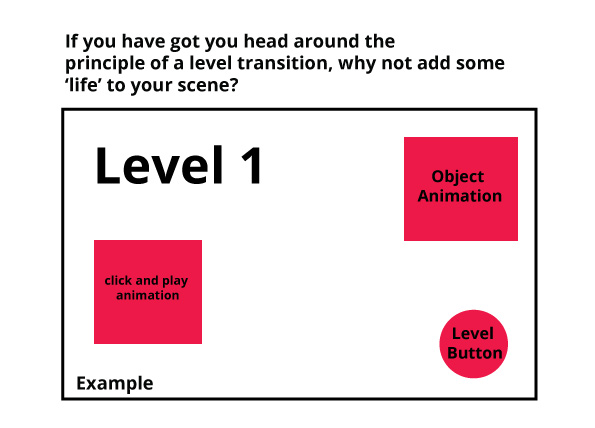
Illustrations showing how to make a level change in principle
How to make an interactive story game in Flash (Adobe Animate)
Click a button, go to Scene2.
Interactive story game / Museum | Hide and Unhide
The essence of this hide and unhide would be along these lines in Action Script
When I ‘hid’ or ‘unhid’ objects in a Scene, I used Action Script to do so – Object Orientated Programming.
This is the principle
of what I used with Action Script 3.0
MovieClipname.visible = false;
That little snippet of code (ActionScript 3) was employed a lot when creating a project.
That single short line
of code is telling Adobe Animate (flash) to hide the object when it
comes to runtime ( when you publish your app).
When It’s visibility is
‘false’. It will not be seen by the player. At some stage, you will
need to make it’s visibility true!
Now, in order to make
the movie clip become visible – it would have been attached to a
button like so. And this would have been written.
ActionScript 3.0 really honed in on something called Object Orientated Programming or OOP – now being a bashful designer.
At heart, a part of me didn’t want to discuss what Object Oriented Programming is – the notion of having me describe it here brings me out in schoolboy sweat
Object Orientated
Programming is something I make use of lot these days whether it is
piece of script in C Sharp or something to be created in Animate. OOP
works with elements and animations inside your game, level or scene.
It is dedicated to working more fluidly with objects and classes.
Here is the Adobe definition for OOP.
“Object-oriented programming (OOP) is a way of organizing the code in a program by grouping it into objects. The term object in this sense means an individual element that includes information (data values) and functionality.”
– Source : Adobe
I hope my simplified approach helps with some principles of How to make an interactive story game in flash (Adobe Animate). Although this was used on the older museum project, the method still carries today.
That is a principle and
condensed overview of steps I used to build this interactive museum.
There was more involved
in my version such as point scoring but I won’t share that in this
post, as this post talks about the project as a whole and why it was
created and what it wanted to achieve – not the development stages.
Designing an interactive museum | The final Product
Up to this point, I
have covered some of the technical steps I used to create the
application along with discussing the core principles in both the
artwork and the main behaviours in the code.
To the all-important stage, the final product.
Looking back | What was
this for and did it stay on track?
This browser game was created to educate, entertain and draw attention to the real museum located in the town.
Did I feel that I stayed on track and met the brief as one of my early projects as a postgraduate and a freelancer? Mostly, but there are things I would do very differently now. In particular on the website and the UI to capture the core look at feel.
The is museum was
created in conjunction with the new brochure website which set up to
educate and talks to readers about the local trust of whom were my
clients for this project.
If I was to be honest, the one thing I would say is that parts of the website was OTT for the client’s objectives and budgets.
This browser game was created to educate, entertain and draw attention to the real museum located in the town.
The interactive museum itself offers a great addition to the project as a whole… that is where the project was arguably unbalanced from a web entrepreneurs perspective. The interactive museum was an addition but that is where most of the money and time were invested instead of the website which should have been the ultimate focus in my opinion.
The museum dominated too much.
To come at this again,
I would invest much more into getting some enquires and activity from
the brochure website. That would at least balance it from a business
perspective.
All experience in hindsight from 11 years past! A lot happens in a design career in that time.
And it also contributes to what I am writing today. How to make an interactive story game in Flash (Adobe Animate)
What I would also do differently on my museum | personal note
The project on a personal note gave me a tremendous amount of experience in interaction design and creating applications in Flash. This was a follow on from creating games in flash, for example like the STEM / E-learning game I created which you can read more about.
From memory, the museum
project was a challenge – mostly coming from how long it took to
animate all the little elements and bug test it.
In the end, I felt it gave a result that I was proud to be part of and that was making an E-learning experience which was educational and fun.
There are a few things I would do differently from an art director’s perspective. As it was a project of limited financial resources, there is only so far you can g, sadly.
If this post has inspired you to create a game in Adobe Animate and how to make an interactive story game (not strictly in flash) then please refer back to this post, or feel free to ask any questions.
Below are some other additional links which cover topics such as; how to create and E-learning game, tip for website design and even some insights into alternative game engines!
How to make an interactive story game in Flash (Adobe Animate) – other resources
Don’t use the .SWF (Flash Player) format for web | Link
* Flash is now Adobe Animate. Animate is still, in essence, the same program.
* ActionScript 2.0 is now defunct language. ActionScript 3 is now the more modern Object Orientated language used in Adobe Animate.
* .SWF format for web is an essentially old and almost redundant format to publish to. I would advise against publishing for the flash player for web – especially in 2020.
How to make an interactive story game in Flash (Adobe Animate) – Useful Resources
Thank you for reading how to make an interactive story game in Flash (Adobe Animate)!
This website uses cookies to improve your experience. We'll assume you're ok with this, but you can opt-out if you wish. Cookie settingsACCEPT
Privacy & Cookies Policy
Privacy Overview
This website uses cookies to improve your experience while you navigate through the website. Out of these cookies, the cookies that are categorized as necessary are stored on your browser as they are essential for the working of basic functionalities of the website. We also use third-party cookies that help us analyze and understand how you use this website. These cookies will be stored in your browser only with your consent. You also have the option to opt-out of these cookies. But opting out of some of these cookies may have an effect on your browsing experience.
Necessary cookies are absolutely essential for the website to function properly. This category only includes cookies that ensures basic functionalities and security features of the website. These cookies do not store any personal information.
Any cookies that may not be particularly necessary for the website to function and is used specifically to collect user personal data via analytics, ads, other embedded contents are termed as non-necessary cookies. It is mandatory to procure user consent prior to running these cookies on your website.